Traffic-Engineering App
This traffic-enginerring application will dynamically perform load-balancing among the output ports of any Equal-Cost Multi-Path (ECMP) group in the network. In the ECMP scheme, flows are dispatched to the output ports of an ECMP group based on the hash function used by ECMP and the five-tuple infomation (i.e., the source and destination IP addresses, the source and destination port numbers, and the protocol type) in their packet headers. When the load dispatched to the output ports of many ECMP groups is imbalanced in the network, this application can significantly improve the utilization of the network.
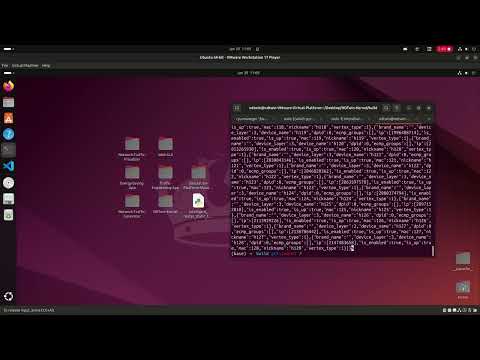
| Component | Description | Format | Link |
|---|---|---|---|
| Pre-configured Demo VM | A fully set up virtual environment with all NDTwin components installed. Requires VMware. | .ova | Download |
This manual provides a step-by-step guide to deploying the NDTwin Traffic Engineering App.
1. Ryu SDN Controller
- Path:
~/NDTwin/Desktop - Environment:
ryu-env - Note: The controller must be started first to observe and manage the network links.
- Navigate to the directory:
cd ~/NDTwin/Desktop
- Activate the environment:
conda activate ryu-env
- Execute the controller:
ryu-manager intelligent_router_static_topo.py --observe-link
2. Mininet Network Topology
- Path:
~/Desktop/Network-Traffic-Generator - Environment:
ntg_env - Note: Password for
sudoisndtwin. This step builds a network topology with 128 nodes.
- Navigate to the directory:
cd ~/Desktop/Network-Traffic-Generator
- Activate the environment:
conda activate ntg_env
- Execute the topology script:
sudo $(which python) example_topology.py
3. NDTwin Kernel
- Path:
~/Desktop/NDTwin-Kernel/build - Note: Requires manual selection of deployment and AI features during startup.
- Navigate to the build directory:
cd ~/Desktop/NDTwin-Kernel/build
- Execute the kernel:
sudo ./bin/ndtwin_kernel --loglevel info
- Select startup configurations:
- Environment: Enter
1(Mininet / Simulated testbed). - OpenAI Token: Enter
2(Disable AI features).
4. Network Traffic Visualizer
- Path:
~/Desktop/Network-Traffic-Visualizer - Note: Provides a GUI to monitor the live network state and traffic flows.
- Navigate to the directory:
cd ~/Desktop/Network-Traffic-Visualizer
- Run the visualizer script:
./network_traffic_visualizer.sh
5. Traffic Engineering App
- Path:
~/Desktop/Traffic-Engineering-App - Environment:
te-env(Python 3.12) - Note: Uses
$(which python)to forcesudoto use the Conda environment’s Python instead of the system Python.
- Navigate to the directory:
cd ~/Desktop/Traffic-Engineering-App
- Activate the environment:
conda activate te-env
- Execute the application:
sudo $(which python) Traffic-Engineering-App.py
6. Traffic Generation and Load Balancing
- Note: This step simulates network load and applies the TE balancing logic.
- In the Network Traffic Generator terminal, start the flows:
# Inside the NTG interface
flow --config
# Select the configuration file
config_template.json
- In the TE App terminal, select the execution mode:
- Select TE Mode: Enter
2(Execute periodically). - Execution Interval: Enter
5(Seconds).
- Verify Results: * Monitor the Visualizer GUI to see the skewed traffic rebalance.
- Check the App logs for the message:
XX entries are added.